

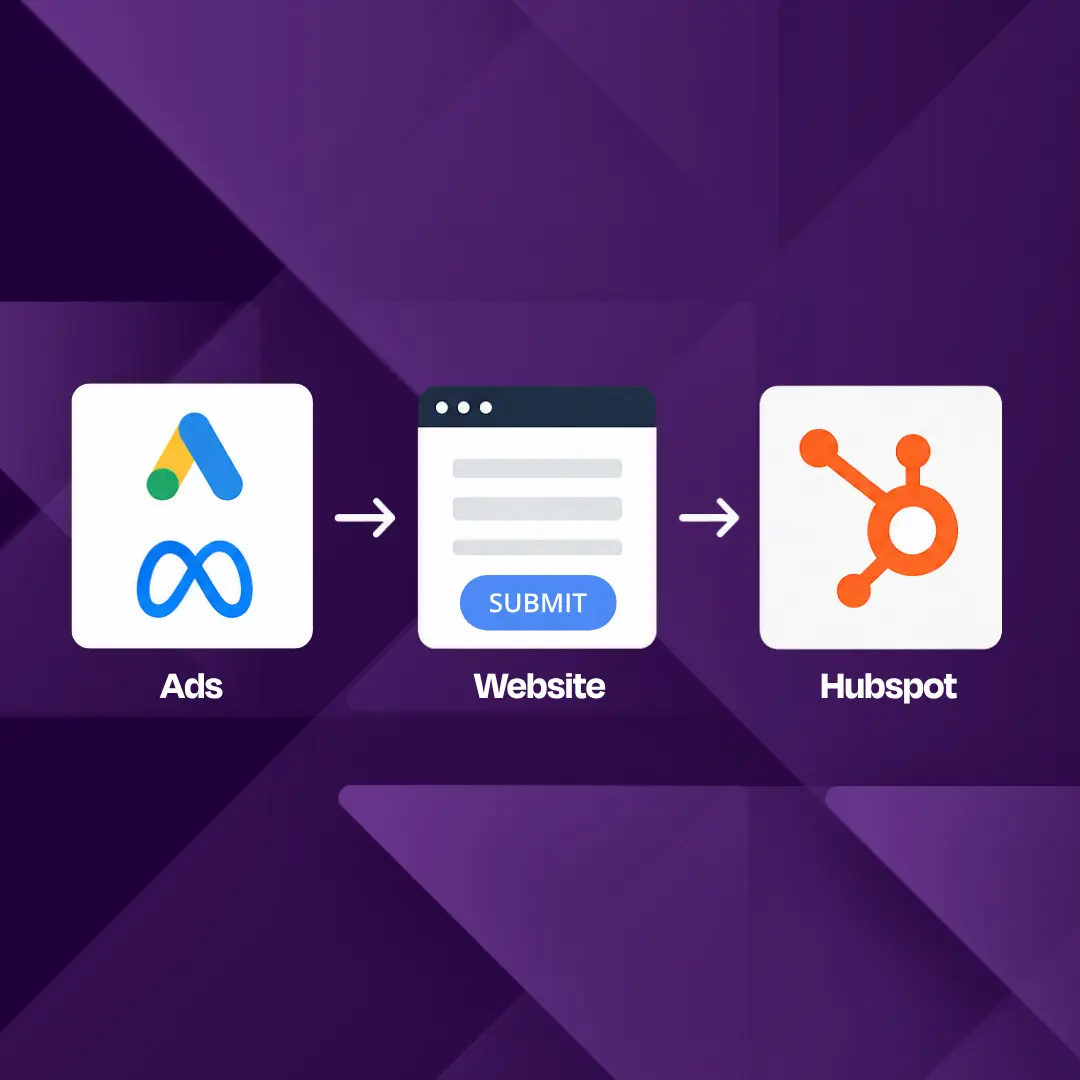
For marketers, running ads and managing a website are fundamental parts of your job. However, using a CRM to understand your marketing performance might not be second nature.
In this guide, we’ll focus on how you can integrate one of the most popular CRM’s, HubSpot, into your marketing efforts to ensure you have complete visibility into your leads and opportunities.
Part 1: Integrating HubSpot with your website
Why integrate your website with a CRM?
Integrating your website with your CRM helps you follow a web-generated lead all the way through the sales funnel. In a typical example, most prospects start by interacting with a form of marketing, either via search, social or email, and then end up on your website. Once they’re on your website, it’s most likely you’ve asked them to complete a contact form.
For some marketers, visibility stops here, allowing you to see who completed a form and how many enquiries you received, without understanding the true commercial impact. Integrating a CRM such as HubSpot will give you the opportunity to follow that lead right through to opportunity and a closed deal, giving you insights into where the lead originated, what service they were enquiring about, and how much they spent and are worth to your business.
Using tools like HubSpot
One of the most popular CRM platforms we get asked to work with is HubSpot. HubSpot is very well-known and widely used, and for marketers, it offers built-in marketing solutions like email marketing and automation, along with social media scheduling. It also offers flexibility in how to integrate with your website.
At Trio, we don’t have a preferred CRM for our clients to use, as your requirements are unique to your business. We use HubSpot ourselves and have a lot of experience with it, but we can work with any CRM you prefer.
How do we handle integrating HubSpot with your website?
There are typically two main options for integrating your website with your HubSpot CRM, and it comes down to how you want to capture leads. Both examples below are based on the most popular method of lead capture: a contact form.
Option 1: Using HubSpot’s own form
HubSpot includes its own functionality for building a web form. Using forms native to HubSpot helps to seamlessly send data from your website to your CRM.
Whilst on paper, this often seems like the easier option as it offers an out-of-the-box solution, it does come with certain limitations, such as form styling, which can often put marketers off when they see what their CRM enquiry form looks like on the front end of their website.
Option 2: Sending web form data to the CRM through a plugin or API
The second option is to build a form within the website (typically a WordPress contact form; our preferred plugin for this when doing integrations is Gravity Forms). This allows us to style the forms exactly as we wish, making them fit the look and feel of the website design. We then use a plugin or API to connect the website to HubSpot, mapping the fields from the website form to fields within your CRM.
With either option, we handle the process end-to-end, provided you’re happy to grant us access to your CRM.
Part 2: Integrating HubSpot with your ad accounts
ROI and ROAS reporting are so important for ads, as every penny spent needs to be accountable. However, this is rarely possible if you’re not connecting the dots from an enquiry right through to sale. Connecting your accounts on Google Ads and Meta ads with HubSpot helps you to complete the visibility loop.
How do you connect HubSpot CRM to your ad accounts?
To connect HubSpot with tools such as Google Ads or Meta Ads, you need to log in to HubSpot and follow these steps.
- Navigate to ‘Data Management’ and select ‘Data Integration’ from the menu.
- Click ‘Connect an app’ from the navigation boxes.
- A pop-up will appear, where you can search for the app.
- Search for ‘Google Ads’ as an example and then hit ‘Install’.
- A new window will open that prompts you to track and optimise your ad campaigns to turn prospects into customers. Click ‘Get started with ads’.
- Another new window will appear, showing you the ad integrations. You can connect HubSpot with Google Ads, Meta, LinkedIn and TikTok.
- Selecting an Ad type will open a new window prompting you to sign in and connect to the respective platform.
- You will need to allow permissions for HubSpot to see and edit your ad account.
- Once approved, you will be returned to HubSpot. It will ask you to select the specific ad account (if you have more than one). Click ‘connect account’.
Alternative ways to connect HubSpot to your ad accounts
You can also follow these steps in HubSpot as an alternative.
- Go to Settings
- Scroll down to ‘Marketing’
- Select Ads from the menu
- Click ‘Connect Account’
- Follow the same steps from step 6 above onwards.
Please note that HubSpot has limitations on the ad types it can track. For example, it cannot track Performance Max or YouTube ads. After you connect your ad account, HubSpot will apply tracking to eligible ads that are currently active or pending review.
What can you do when HubSpot is connected to your ads account?
Within HubSpot, you have several ad management options that apply across your Google, Meta, LinkedIn and TikTok accounts. These include:
- Create ad campaigns
- Build audiences, including:
a. Website visitors for retargeting (compatible with Google, LinkedIn and Meta)
b. Syncing HubSpot contacts to retarget them on the web
c. Lookalike audiences, creating audience profiles from your ICPs to retarget (Meta and TikTok only) - Create pixels for tracking
You can manage your ads by going to Marketing > Ads in the HubSpot navigation. This is where you can view activity and analyse data. Please note that certain features, such as Events and Calculate ROI, are only available on an upgraded subscription.
Managing the HubSpot connection through Google Ads
You can also connect Google Ads with HubSpot through the Google Ads interface. It is recommended that you cover both options to ensure data sharing is maximised.
- Log in to your Google Ads account
- Go to ‘Tools’ and select ‘Data Manager’
- Click ‘Connect Product’ and search for HubSpot (quite often it appears as a popular option on the first screen).
- A window will open, providing you with options to connect. Select ‘Use direct connection’ and authorise.
- You can select ‘Back’, and the process will be complete, or you can turn on further features, such as enhanced conversions and building an audience from your ad conversions.
Managing the HubSpot connection through Meta Ads
To connect HubSpot via Meta Business Manager, follow these steps:
- Log in to Meta Business Manager and open Events Manager.
- Go to Data Sources and choose Partner Integrations.
- Select HubSpot and authorise the connection.
Here you can map your CRM fields and pipeline milestones to Meta standard events. HubSpot can only track Meta ads that go to a third-party application, and cannot track leads that, for example, are captured within WhatsApp.
Need support with integrating HubSpot with your website or ad account?
If you want to chat with us about anything in this guide, please don’t hesitate to reach out. We can share our thoughts on using HubSpot or provide a quote to get you started with a HubSpot integration.
FAQs
HubSpot is a CRM, which stands for Customer Relationship Management, and refers to a system that allows you to store and manage client information. Companies use it to store customer information in one place. As such, it’s a great asset to connect with your website, so that when you collect new data, such as via a contact form, it is automatically added to your CRM.
Whether the website is new or existing, the same process exists. We would choose the method of data collection and integrate the website forms with the CRM.
Yes, we can support the process of integrating your CRM with your website and ads.
Your website can pass most collected data into HubSpot. This includes form fields such as name, email, phone, business, interests and message, along with data on which pages they browsed, how they landed on your website, and when they visited.
A straightforward integration would cost around £500, including all testing, and would only add 1-2 days to the timeline.
Not thinking about the customer journey. You should still consider the ease of use when requesting data from website visitors, what the form looks like, and how easy it is to contact you. Just because you CAN collect lots of data doesn’t mean you should, if it stalls the user journey.
We can fill in the contact form in a test environment to ensure that the enquiries are being recorded in the CRM correctly.
The integration allows you to have greater insights and improve the performance of your campaign, for example, using enhanced conversions, building audiences from your ICPs, and tracking the performance of qualified leads.
HubSpot and Meta can work together to get the most out of the Conversions API in Meta, meaning better insights into your lead volume and quality.
You get accurate insights into the effectiveness of your marketing, with full end-to-end reporting from day one spend and lead generation through to customer acquisition and revenue attribution.
Yes, most commonly used CRMs offer similar integrations with WordPress, and we have experience with all of the above-mentioned CRMs. Google Ads also integrates with each of these options.
Mailchimp and Klaviyo are email marketing and automation platforms; however, sometimes people use these instead of a CRM. That can be OK if you have limited use cases; for example, you just need your customer data stored in a list. They don’t typically allow you to track leads, deals, opportunities and revenue against a contact in the same way that a CRM like Hubspot would.